CallClerk - Systray
The CallClerk systray icon can be found in the Window’s systray. The Window’s systray is usually found at the bottom right hand side of your Window’s screen, it contains a series of icons representing running programs.The CallClerk’s systray icon looks like a small black candlestick phone.
Moving the mouse over the CallClerk systray icon: will cause a pop-up window to appear. The pop-up window identifies the date, time and name associated with the most recent call CallClerk received. (Each time CallClerk starts it loads this information form the history file, after that this information is updated as new calls are received.)
Double clicking on the CallClerk systray icon causes the window selected in the CallClerk - Settings - Start/Stop window to open.
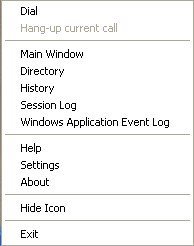
Right clicking on the CallClerk systray icon causes the CallClerk systray menu to appear.
From the CallClerk systray menu you may select (click on) and open any one of the following CallClerk windows: Clipboard Dial, Main Window, Directory, History, Session Log, Windows Application Event Log, Settings or About. You may also select to Exit (stop from running) CallClerk or to hide the CallClerk systray icon.
If there is currently a call connected then you can also select to Hang-up on the current call if you like; this option will be greyed out if there is not a current call connected.
The CallClerk systray icon's background
The CallClerk systray icon's background is normally black, however you can change this to be white on the CallClerk - Settings - Misc. window.
Hiding the CallClerk systray icon
If you select ‘Hide Icon’ after right clicking on the CallClerk systray icon, the CallClerk systray icon will be removed from the series of icons in the Windows systray, however, CallClerk will continue to run.
Hiding the CallClerk systray icon will prevent you from accessing CallClerk windows until the CallClerk systray icon is restored.
To restore the CallClerk systray icon just click on the CallClerk program icon on your desktop or in your program list.
Running CallClerk with the systray icon hidden still allows for the tracking and reporting of calls although, depending on the settings selected with respect to reporting calls in the CallClerk Settings window, this may not be apparent to the user.
When your system is rebooted the CallClerk systray icon will reappear unless an override option is placed in CallClerk’s startup shortcut.
To override CallClerk such that its systray icon does not appear on startup, change CallClerk’s shortcut properties in your Window’s startup folder from their default of:
"C:\Program Files\CallClerk\CallClerk.exe"
to
"C:\Program Files\CallClerk\CallClerk.exe” /Hide
When the CallClerk systray icon is hidden Windows Task Manager may be used to stop CallClerk from running; in Window Task Manager CallClerk is found as a process named ‘CallClerk.exe’.
Here is what the CallClerk Systray menu looks like: