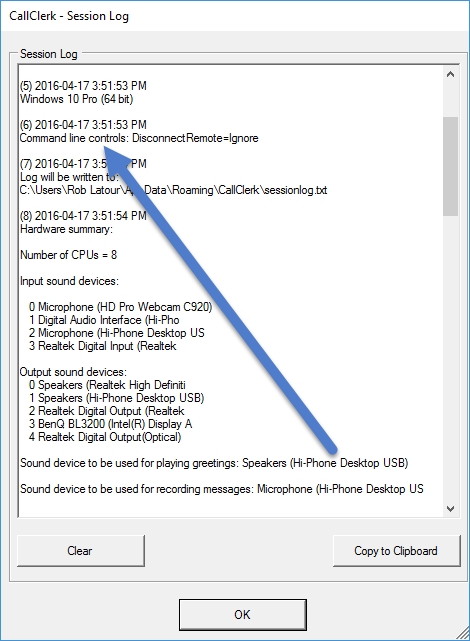
CallClerk - Command Line Options
CallClerk supports a variety of command line options, these are:| main | opens the CallClerk Main window |
| dial | opens the CallClerk Dial Out window |
| dial=phonenumber= | opens the CallClerk Dial Out window ready to dial the identified number |
| dial clipboard | opens the CallClerk Dial Out window and loads the clipboard's contents as the number to dial |
| directory | opens the CallClerk Directory window |
| history | opens the CallClerk History window |
| settings | opens the CallClerk Settings window |
| hide | hides the CallClerk Systray Icon |
| disconnect=ignore | causes CallClerk to ignore the disconnect command from your modem |
| disconnectremote=ignore | causes CallClerk to ignore the disconnect command sent to your modem from the caller's line |
| exit | causes CallClerk to exit. If a call or backup is in progress, CallClerk will let it complete before exiting |
| extrabroadcast | causes CallClerk to perform an extra set of UDP broadcasts on port 10081 when a call is being processed |
| nohangup | cause CallClerk to never hang up on the caller, relies on the caller to always hang up. Use this option with caution as it may result in otherwise unwanted behaviours - such as the line being left open, especially if the caller does not hang up. |
| nojournalpopup | causes the pop-up of the Outlook Journal entry to be suppressed when a new Journal Entry is created |
| notimecheck | causes CallClerk to ignore significant date variations since the last time it was last run |
| playunreviewed=LIFO playunreviewed=FIFO |
Both these commands will play your currently unreviewed
messages through your computer's speakers. More
specifically, what will be played is: i) a summary of how many unplayed messages you have ii) for each (if any) unplayed message: an announcement letting you know when the call came in and from whom the message iii) (if there were any unplayed messages) a message to let you know there are no more messages to be played The LIFO (Last In First Out) plays the most unplayed recent messages first, the FIFO (First In First Out) plays the oldest unplayed messages first. While playing the unplayed messages the CallClerk History window will be opened. Closing the window will stop the messages from playing. If the CallClerk History window was not already open when you issued the command to play the unplayed messages, it will be automatically closed following the last message being played. |
| tapicalleridandring=ignore | causes CallClerk to ignore the caller id and ring info in tapi mode |
| usefilewatcher | by default CallClerk uses network broadcasts to report calls across your network; this option provides for an alternative method in the case where your network broadcasts are being blocked. Using this method requires all your PCs to be sharing the same CallClerk database over your network |
| whiteicon | causes CallClerk to show its systray icon with a white background - which is easier for some to see |
Here are some example command line entries are:
"C:\Program Files\CallClerk\CallClerk.exe” dial
causes CallClerk to start with the Systray icon and the CallClerk Dial Out window visible
"C:\Program Files\CallClerk\CallClerk.exe” history directory
causes CallClerk to start with the Systray icon, History, and Directory windows visible
"C:\Program Files\CallClerk\CallClerk.exe” hide dial
causes CallClerk to start with its Systray icon hidden and with the CallClerk Dial Out window visible
"C:\Program Files\CallClerk\CallClerk.exe”
causes CallClerk to start with the Systray icon visible
Step1:
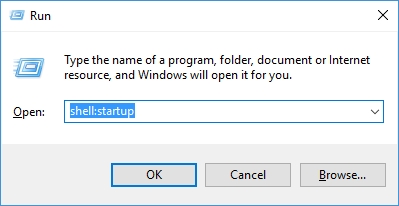
Press the Windows Key and the “R” key at the same time
Step 2:
In the window that pops up, type
shell:startup
and click the OK button
In the window that appears, right click on the
CallClerk entry and select ‘Properties’
Click the Shortcut tab, and then in the field that
says target following where it says CallClerk.exe” add a space
and then the command line parameter(s)
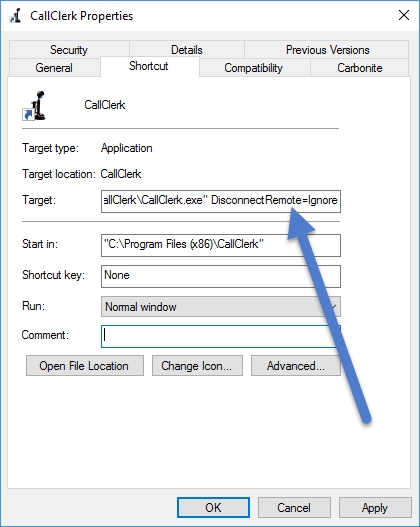
When done click the OK button