CallClerk - Running CallClerk as a Service
You can use a third party product, FireDaemon Pro, to configure and run CallClerk as a windows service.FireDaemon Pro sells for $49 US. Anyone who has purchased a license of CallClerk can e-mail info@callclerk.com for information on a 25% discount off FireDameon.
FireDaemon Pro offers a 30 day free trial, please work with the free trial to ensure it and CallClerk meet your needs prior to ordering either.

Important Advantages
Running CallClerk as a windows service allows CallClerk to automatically start when your PC is turned on or rebooted, you don't have to wait until you sign onto your user id for CallClerk to start running.
CallClerk can be run continually across multiple user sessions.
Important Limitations
Will FireDaemon can be run using Windows Vista, 7 and 8 - effectively due to changes made by Microsoft since XP, interaction on any version of Windows above XP is not practical for use with CallClerk.
Unfortunately, if CallClerk is run as a service it can not interact with Microsoft @ Outlook@.
Accordingly, CallClerk's MS Outlook features need to be turned OFF on the CallClerk - Settings - Control Panel window of the PC where CallClerk will be running as a service, other PCs networked in can still use the Outlook pop-up function.
Additionally the MS Outlook Directory Import function will not work while CallClerk is being run as a service.
Finally, the Help and Support via E-Mail functions on the Main Window will not work.
! CallClerk will however still be able to provide e-mail notification of a incoming calls as CallClerk doesn't need Outlook for this !
Steps to set CallClerk up as a service:
1. Start CallClerk as normal
1.1 On the CallClerk - Settings - Control Panel window ensure the options for Display CallClerk Pop-ups and Outlook Pop-ups is turned OFF for all Caller Types in both the section entitled "For Calls Reported by this PC's modem" as well as the section entitled "Report calls from Networked PCs"; click the "Apply" button.
1.2 On the CallClerk - Settings - Start / Stop window ensure the option to "Start CallClerk when you log on" is unchecked; click the "OK" button.
2. Download, install and run FireDaemon. Note: FireDaemon comes with at 30 day free trial period.
2.1 Click on the "Create a new service definition" button in the tool bar (or type Ctrl+N) and enter the information into the fields of the Program, Settings and Dependencies tabs as follows:
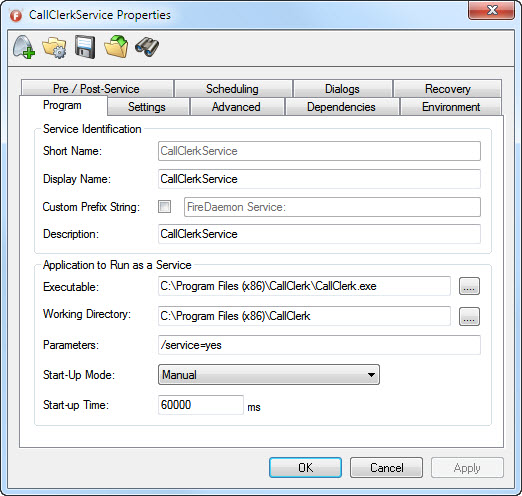
21.1 On the Program Tab
Update Short Name, Display Name, Description, Executable, Working Directory, Parameters and Start Time as follows:
(the Executable and Working Directory path names should be updated to suite your installation if CallClerk runs from a location other than C:\Program Files\CallClerk)
2.1.2 On the Settings Tab
Ensure the option 'Interact with Desktop' is checked,
Update the Max Shutdown Delay to 60000
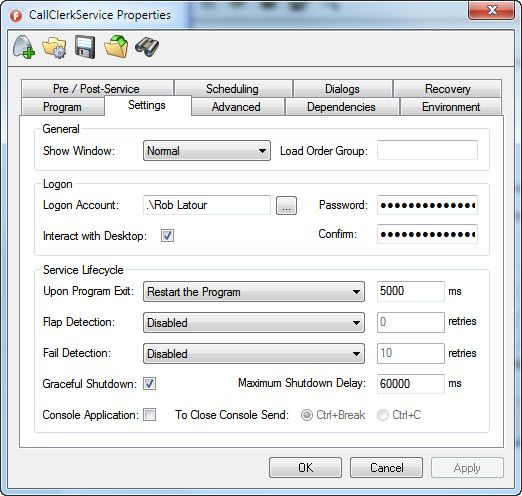
Click the [...] button and enter your logon user id in the select user box
Click the [Check Names] button
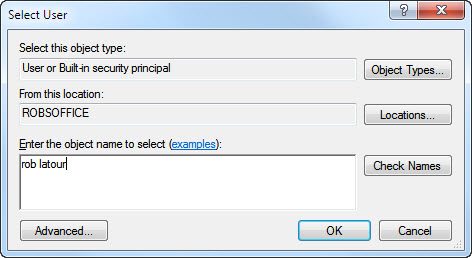
Click the OK button on the Select User windows and add in your sign on password
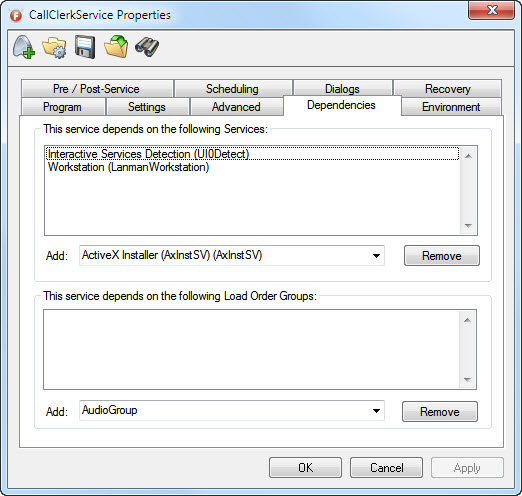
2.1.3 On the Dependency Tab
Add a service dependency for Interactive Services Detection (UI0Detect) and Workstation (LanmanWorkstation) as follows:
2.1.4 No other FireDaemon settings need to be changed, at this point click the Install button. CallClerk will immediately begin running as a service.
2.1.5 Exit FireDaemon
3. Once CallClerk begins running as a service you may notice that your CallClerk settings have reverted to their defaults. If you do not wish to reapply all your original setting you may copy your old CallClerk settings to work with CallClerk while it is run as a service. To do this:
3.1 Start FireDaemon
3.2 Click on the CallClerk entry in your FireDaemon Pro Service Manager window and from the FireDaemon menu click Service - Stop
3.2 Using Windows File Explorer (or any other utility) copy the file
C:\Documents and Settings\xxx\Application Data\CallClerk\CallClerk.dat (where xxx is the user id that you normally run CallClerk from)
to
C:\Documents and Settings\LocalService\Application Data\CallClerk\CallClerk.dat
3.3 Click on the CallClerk entry in your FireDaemon Pro Service Manager window and from the FireDaemon menu click Service - Start
3.4 Exit FireDaemon
4. After you have evaluated FireDaemon Pro and if you are happy with it, in order to help further support CallClerk, you are asked to please consider purchasing FireDaemon by first clicking on the following link:
Get FireDaemon Now