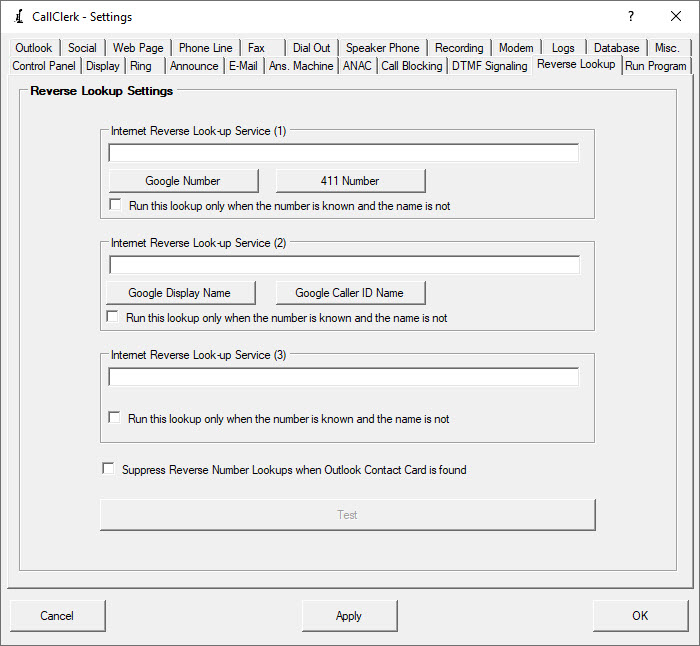
CallClerk - Settings Reverse Phone Number (Caller ID) Lookup Window
Reverse Phone Number (Caller ID Number) LookupsAs soon as your phone company passes the caller's phone number (Caller ID information), usually just after the first ring, CallClerk can automatically look up a caller's phone number and/or name using up to three search services.
CallClerk comes configured pointing to some example search services; these services are not part of CallClerk rather is simply referenced by it.
To find other internet reverse lookup services simply search the internet for "Telephone Number Reverse Lookup".
The search services to be used can be changed by updating the search strings fields on the Settings - Reverse Phone Number Lookup window.
CallClerk also provides for the following substitutions in any of the search strings fields:
| %Formatted Number% | will format the phone number as 555-123-4567 and substitute it in the search string | |
| %Unformatted Number% | will format the phone number as 5551234567 and substitute it in the search string | |
| %Display Name% | will substitute the Display Name (from the Directory) in the search string | |
| %Caller ID Name% | will substitute the Caller ID Name (as provided by your phone company) in the search string |
http://www.google.com/search?q=%Formatted Number%
http://www.411.com/search/Reverse_Phone?phone=%Unformatted Number%
http://www.google.com/search?q=%Caller ID Name%
http://www.google.com/search?q=%Display Name%
http://www.google.com/search?q=%Formatted Number% %Caller ID Name%
http://search.yahoo.com/search?p=%Display Name%&sm=Yahoo%21+Search&fr=FP-tab-web-t&toggle=1&ei=UTF-8
http://www.whocalled.us/lookup/%Unformatted Number%
For each lookup, you may also check an option that will cause the lookup to happen if the caller id number is known but the caller id name is not.
Notes
CallClerk will launch each search one after the other, if you are using a tab enabled browser, such as Firefox, each search will appear in its own tab. If you are not using a tab enabled browser such as Microsoft Internet Explorer, you will need to click the back button to view previous searches.
In some locations, such as Canada, the area code is not reported by your phone company for local calls. As the internet reverse lookup service will require this information CallClerk will need to know it. In this case your local area code information will be taken from the 'My Area Code' field on the CallClerk - Settings - Dial-out
window.
The CallClerk - Control Panel is used to turn the reverse number lookup function on or off for familiar, unfamiliar and blocked callers.
If checked, the option Suppress Reverse Number Lookups when Microsoft© Outlook© Contact Card is found will suppress reverse number lookups if the Outlook Pop-up feature is turned on and an Outlook Contact Card is found for the caller.
Searches will only be conducted where as search string field is not empty.
Click the [Test] button to test this feature; when you do so you will be prompted for a number and or name (depending on which search strings you used) - enter the full number including the area code or use the defaults provided.
Once the current settings have been modified the changes may be permanently applied by clicking on the [Apply] or [OK] button or voided by clicking on the [Cancel] button. If either the [OK] or [Cancel] button is pressed then the CallClerk - Settings window will be hidden.
The CallClerk - Settings - Reverse Lookup window looks like this: