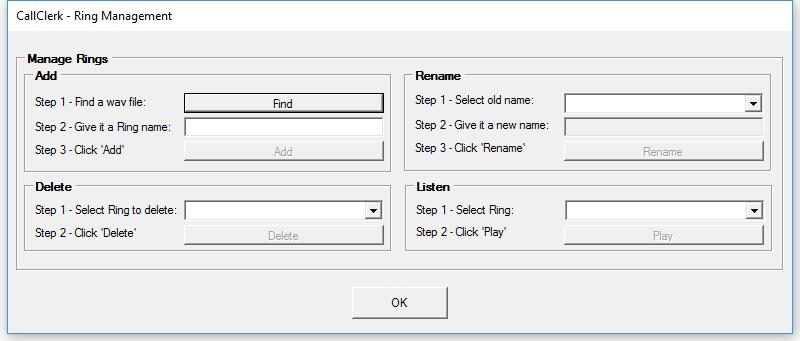
CallClerk - Manage Rings Window
The CallClerk - Manage Rings allows you to add new rings to be played by CallClerk.On this window you can:
1. Add a new ring
2. Delete a ring
3. Rename a ring
4. Listen to a ring
To add a Ring click on the Find button, locate the ring on your PC's hard drive and click [OK].
Next give the Ring a name (to appear in the ring drop down list) and then click [Add].
Note: Rings are loaded as .wav files many of which can be found on the internet. Do an internet search on "free wav files" to locate many such files.
Note: a copy of a ring is stored in the CallClerk database, it is not required that your keep the original ring file in the location you loaded it from.
Deleting a Ring
To delete a Ring select it from the drop down list and click [Delete].
Note if a ring is deleted then any reference to it by CallClerk (in the directory or Settings - Ring window) will be deleted as well.
Renaming a Ring
To rename a Ring select it from the drop down list, give it a new name and click [Rename].
Note if a ring is renamed then any reference to it by CallClerk (in the directory or Settings - Ring window) will be renamed as well.
Listen to a Ring
To Listen to a ring select it from the drop down list and click the [Play] button (you PC speakers must also be on).
Here is what the CallClerk - Manage Ring window looks like this: