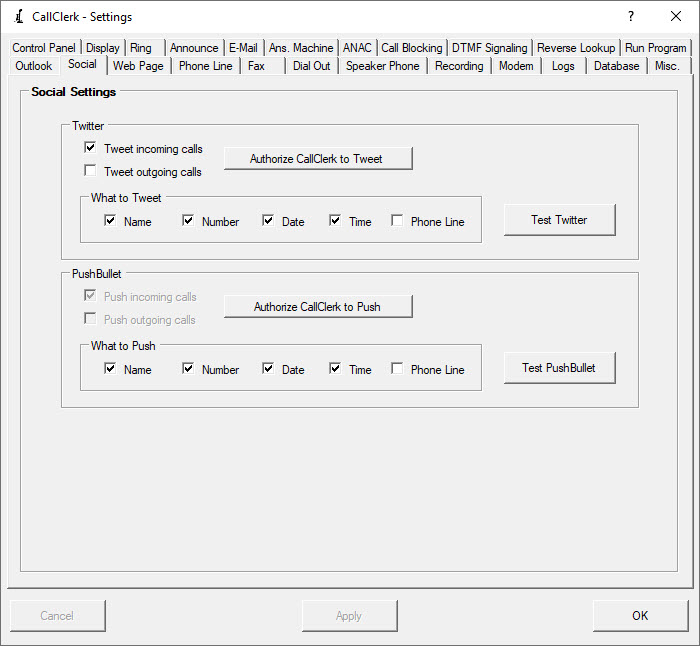
CallClerk - Settings Social Window
The CallClerk - Settings - Social window is used to set various in relation to sending social updates.CallClerk supports social updates through Twittrt and PushBullet.
Setting up to use Twitter
Before CallClerk can tweet (report) an incoming or outgoing call on Twitter you will first need:
1. A Twitter account (to sign up for one for free please visit www.twitter.com )
2. To Authorize CallClerk to tweet to your account.
To do this, just click the 'Get Twitter Authorization PIN' button on the CallClerk - Settings - Social window and follow the instructions.
Some notes about Twitter authorization:
Twitter authorizations are free and can be done in less than a minute, and you should only have to do them once, unless you want to change the account CallClerk tweets to.
Twitter does not provide an option to keep your tweets private.
Setting up to use PushBullet
With PushBullet you can have a notification pushed to any computer or cell phone running the PushBullet service. This allows you to have pop-up notifications of incoming calls on computers beyond your internal network, or notifications sent to your cell phone(s).
Before CallClerk can push a notification about an incoming or outgoing call through you PushBullet account you will first need:
1. A PushBullet (to sign up for one for free please visit www.pushbullet.com)
2. To Authorize CallClerk to post to your PushBullet account. To do this, just click the 'Authorize CallClerk to Push' button on the CallClerk - Settings - Social window and paste in your PushBullet Access Token which you get from www.pushbullet.com - Settings - Account - Access Token - Create Access Token. Your PushBullet Access Token is tied to your PushBullet Account, so when notifications go out they go out to all devices signed on through your PushBullet Account.
Tweeting and Pushing
You can set if CallClerk tweets / pushes incoming, outgoing or both incoming or outgoing calls; just check (to tweet) or uncheck (not to post/tweet) the appropriate option.
Also to post/tweet incoming calls, the Social option must be turned 'ON' on the CallClerk - Settings - Control Panel for the caller types (Familiar, Unfamiliar, Blocked) that you would like to tweet.
The information you post/tweet is also determined by you; you can choose to post/tweet the CallClerk Display Name/Caller ID name, CallClerk Display Number/Caller ID number, date and/or time that a call was received or placed.
Regarding the name and number options: a dark check in the name or number option signifies that CallClerk is to tweet the CallClerk display name or number; a light check in these same options indicates that CallClerk is to tweet the caller ID name or caller ID number, while no check signifies that CallClerk will not tweet this information.
If none of the options name, number, date, or time are checked, but you have checked the option to tweet incoming or outgoing calls then either just 'Call received' or 'Call placed' (as appropriate) will appear in the tweet.
Once you have Authorized CallClerk to post/tweet to your account, you can click the 'Test' button to send a test post/tweet.
Once the current settings have been modified the changes may be permanently applied by clicking on the [Apply] or [OK] button or voided by clicking on the [Cancel] button. If either the [OK] or [Cancel] button is pressed then the CallClerk - Settings window will be hidden.
The CallClerk - Settings - Run Program window looks like this: