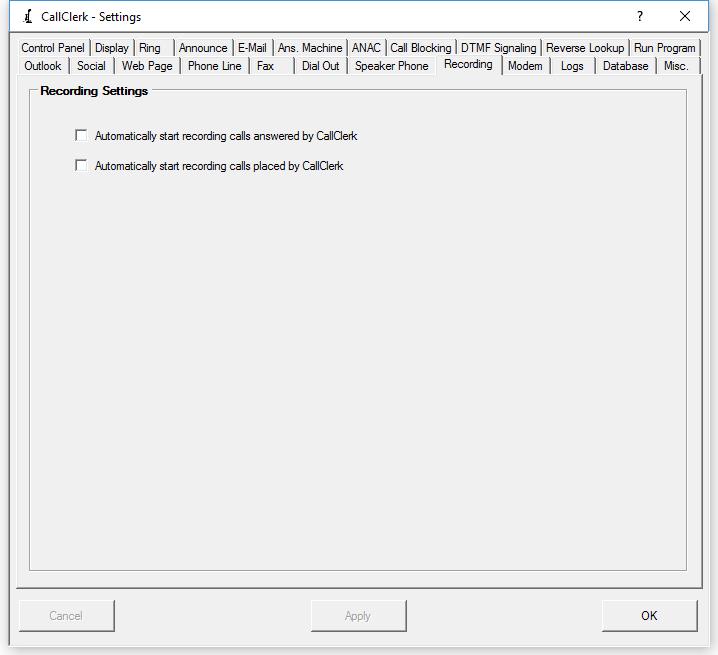
CallClerk - Settings Recording Window
The CallClerk - Settings - Recording window is used to start CallClerk's recording a call you click on the [Answer] button of the CallClerk Display window or when you place a call through the DialPad:If the option 'Automatically start recording calls answered by CallClerk' is checked then CallClerk will begin recording the call as soon as it is answered via the [Answer] button of of the CallClerk Display window.
If the option 'Automatically start recording calls placed by CallClerk' is checked then CallClerk will begin recording the call as soon as it is place through the DialPad.
For more information on how recorded conversations work please refer to the "recording a conversation" section of the DialPad help documentation.
Once the current settings have been modified the changes may be permanently applied by clicking on the [Apply] or [OK] button or voided by clicking on the [Cancel] button. If either the [OK] or [Cancel] button is pressed then the CallClerk - Settings window will be hidden.
The CallClerk - Settings - Recording window looks like this: