CallClerk - Settings Dial Out
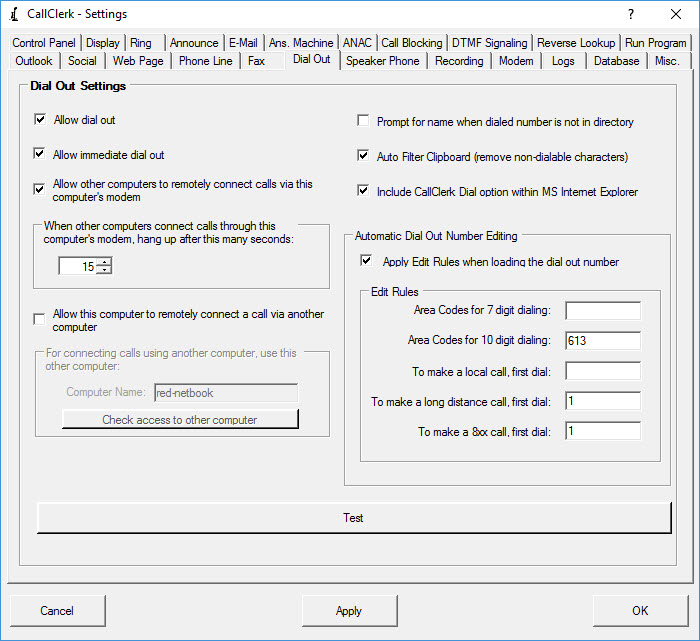
The CallClerk - Settings - Dial Out window is used to control the CallClerk - Dial Out window.
Options that can be set are:
1. Allow Dial Out - this option must be checked before CallClerk can place an outgoing phone call.
2. Allow immediate Dial Out - when this option is checked, CallClerk will immediately dial out (without waiting for you to click the [Dial] button on the CallClerk - Dial Out window ) in certain circumstances.
With this option checked CallClerk will immediately dial:
from either Internet Explorer or Firefox (see point 3 directly below),
when you dial using the command line dial function ( for more information click here ).
when you select and entry either the CallClerk Directory or History windows and press [F4], and
when you use the Dial from Clipboard Hot Key (that is set on the CallClerk - Settings - Misc. window).
Regardless of if this option checked or not:
CallClerk will immediately start dialing when you click on a speed dial button on the CallClerk - Dial Out window, but
will not immediately start dialing when you double click on an entry in either of CallClerk Directory or History windows.
Please note the Allow Dial Out Option (above) must be checked for the Allow Immediate Dial Out option to be enabled.
3. Allow other computers to remotely connect calls via this computer's modem
This option allows you to enter a dial command from another networked computer running CallClerk, and have this computer (the one with the modem in it) actually connect the call.
CallClerk does this by calling the number, waiting the number of seconds you identify in the option 'When other computers connect calls thru this computer's modem, hang up the call in this many seconds', and then hanging up.
So for example, you can use the dial command on a laptop computer, have a server computer with a modem dial the call, pick up an extension phone, and then after the number of seconds identified the server will then hang up the call - but because you picked up an extension phone the call will remain connected until you hang up the extension phone.
For this to work fully the options 'Allow dial out' and 'Allow immediate dial out' should also be checked.
4. Allow this computer to remotely connect a call via another computer
This option works in conjunction with the option described in item 3 directly above.
For it to work, you need another computer running CallClerk with a modem in it connected to a phone line.
The other computer's name is identified in the 'Computer Name' field identified on the same (CallClerk - Settings - Dialout) windows.
The computer name of the other computer can be found near the top of the CallClerk Session Log of the other computer.
When after the computer name has been entered the button 'Check access to other computer' is clicked, CallClerk will check to see the other computer is connected and configured correctly.
5. If you want CallClerk to prompt you for the name of the person you called if the dialed number is not already in directory,
6. Auto Filter - when 'Auto Filter' is selected CallClerk will automatically filter out non-dialable characters from the clipboard when it loads the display area of the CallClerk - Dial Out window; this default can be overridden on the CallClerk - Dial Out window,
7. Include Dial-out option in Microsoft Internet Explorer.
Selecting this option will add a context sensitive 'CallClerk Dial' option within Internet Explorer.
Once you have selected this option future Internet Explorer sessions will be enabled with this feature; that is to say if you have any open Internet Explorer sessions you will need to close them and re-open them before this feature will work.
Also the option 'Enable Protection Mode' in Internet Explorer's - Internet Options - Security window will need to be unchecked.
To invoke this feature, simply highlight a number to be dialed on the web page you are surfing and right click on your mouse (as you would if you were intending to copy it into your clipboard)
the pop-up menu will include a option to perform a 'CallClerk Dial'
select this number to have the CallClerk Dial-Out window appear with the number preloaded.
click the [Dial] button on the Dial Out window to dial the call.
To learn how to add the CallClerk Dial feature to Firefox, please click here.
To learn how to add the CallClerk Dial feature to Chrome, please click here.
8. If, by default, edit rules will be applied when loading the dial out number in the CallClerk - Dial Out window
this default can be overridden on the CallClerk - Dial Out window,
9. Your local area code for 7 digit dialing,
Note: if you have multiple local area codes simple enter each with a semi-colon between each
for example: 974;214
10. A prefix to be added for local calls,
Note: if you need to dial your local area code to reach a local number set this field to include %Area Code%
for example: 8%Area Code% (if you need to dial 8 and then your area code and then the number)
or just: %Area Code% (if you need dial the areacode and then the number (with no leading 1))
11. A prefix to be added for long distance calls.
Note: this prefix (usually used in conjunction with discount long distance services) is ignored for numbers that begin with:
(1) 800 / 822 / 833 / 844 / 855 / 866 / 877 / 888 / 899
Note - for the prefixes to be added for local and long distance callers: in addition to the digits 0 through 9, many modems support the following special characters to control the dialing sequence:
a comma "," (without the quotes) - for a Pause of usually 2 or 3 seconds,
a capital letter "W" (without the quotes) - to wait for a dial tone,
an "@" symbol (without the quotes) - to wait for silence, and
a explanation mark "!" (without the quotes) - to cause a hook flash.
In the case where you have answered a call from an 'Unfamiliar' caller, the Dial Pad window will also show a [Block] button; click this if you would like to block the call after answering it. You will be prompted to confirm this action, and if you say yes you will be prompted to let CallClerk know if you would like to block all calls from this number into the future.
Click the [Test] button to test CallClerk's Dial Out function.
Please note:
The Allow Dial Out Option must be checked enable the [Test] button.
Also, if you have made any changes to CallClerk's Settings you will need to apply them before running a test - CallClerk will notify you of this fact as necessary.
The CallClerk - Settings - Dial Out window looks like this: