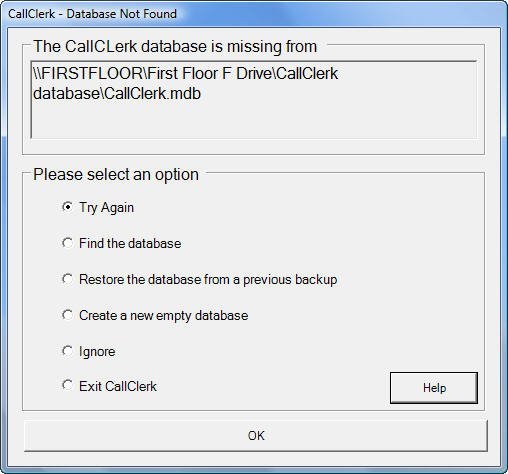
CallClerk - Database Not Found Window
If the CallClerk database is missing from where CallClerk expects it to be, CallClerk will display the CallClerk Database Not Found window at start-up.The location of where CallClerk expected to find the CallClerk database is shown at the top of this window.
Options you can chose include:
| Try Again | This is used when the CallClerk database may have become temporarily unavailable, for example when it is stored on the network and the network was temporarily down |
| Find the database | This is used to manually locate the CallClerk database on your system |
| Restore the database from a previous backup | This is used to restore the database from a previous backup. The backup could have been made through an earlier backup using the backup function on the CallClerk Settings - Database window, or by an earlier copy of the CallClerk.mdb to a backup location |
| Create a new empty database |
If you select this a new empty database will be created at the location identified a the top of the CallClerk Database Not Found window. |
| Ignore | CallClerk will continue to run but some functions will not be available. |
| Exit CallClerk | CallClerk will be exited (stopped). |
Here is what the CallClerk Database Not Found window looks like: